Renesas

Renesas Electronics Corporation (TSE: 6723), the world's number one supplier of microcontrollers, is a premier supplier of advanced semiconductor solutions including microcontrollers, SoC solutions and a broad range of analog and power devices.
You are viewing an older revision! See the latest version
GR PEACH rev_B version information
Platform information
See Platform.
Jumper settings
| JP# | description | default |
|---|---|---|
| JP1 | RST button directly connect to RZ/A1H | open |
| JP2 | Update mbed CMSIS-DAP firmware | open |
| JP3 | VBUS supply to USB Host/Function | open |
| JP4 | short diode not to drop voltage | open |
| JP5 | short diode not to drop voltage | open |
| JP6 | short diode not to drop voltage | open |
CMSIS-DAP firmware Update
See How to update CMSIS-DAP firmware.
Getting Started
Preparation
Install the USB serial communication driver
For Windows(R) user:
- Connect GR-PEACH and PC.
- After the mount GR-PEACH as "MBED" volume label, install this driver.
Add compiler for GR-PEACH
- The root folder of GR-PEACH mass storage drive includes "mbed.htm" .
- This file jumps to the site of GR-PEACH when double clicked.
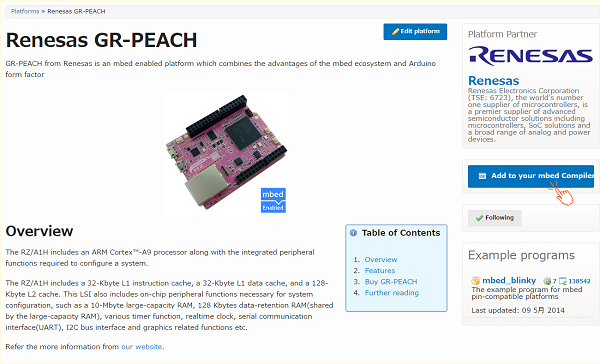
- You can use mbed compiler for GR-PEACH after click at "Add to your compiler" button.
Build and Run
How to import, compile, and run.
- Then launch the development environment from Compiler button.
- Import programs you need.
- Click "Import Program" button.
- Create binary file to click the "Compile" button.
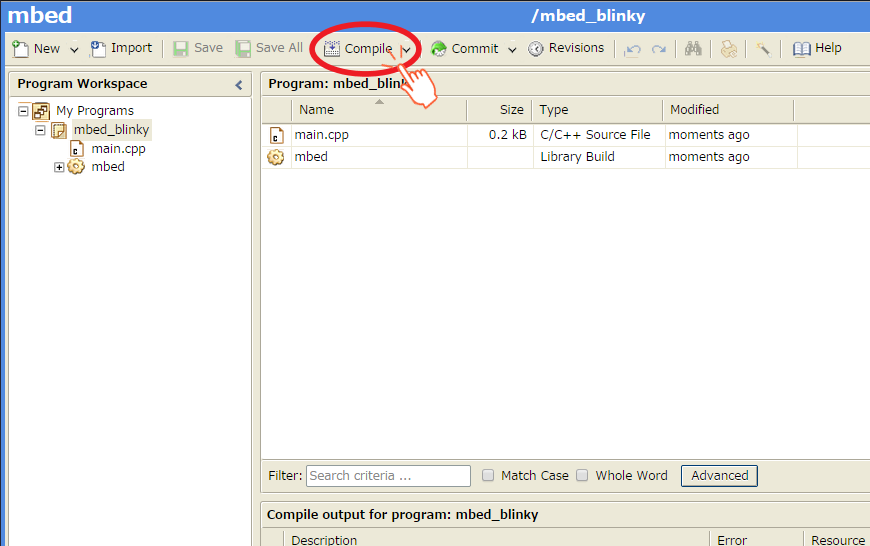
- When compile is finished, binary file is downloaded using browser function.
Copy this file to mbed drive.
For Window user: drag and drop.
For Mac user : Refer here - When GR-PEACH's reset button is pushed or reconnect USB cable, the program runs.
Let's blink LED
- Import mbed_blinky.
Blink LED smoothly
Edit main.cpp of mbed_blinky.
LED PWM
#include "mbed.h"

PwmOut led(LED_RED);

int main() {
    float crt = 1.0, delta = 0.04;

    led.period_ms(2); // 500Hz
    while (true) {
        led.write(crt);
        wait_ms(50);
        crt = crt + delta;
        if (crt > 1.0) {
            crt = 1.0;
            delta = -delta;
        }
        else if (crt < 0) {
            crt = 0;
            delta = -delta;
        }
    }
}
Use A/D converter
A/D conversion uses A0 and A1 of Arduino pinout
#include "mbed.h"

DigitalOut myled(LED1);
AnalogIn   ain0(A0);
AnalogIn   ain1(A1);

int main() {
    myled = 1;
    while(1) {
        myled = !myled;
        printf("ain0 = %8.3f, ain1 = %8.3f\n", ain0.read(), ain1.read());
        wait(1);
    }
}
Use Serial Peripheral Interface(SPI)
SPI communication uses from D10 to D13 of Arduino pinout
#include "mbed.h"
SPI spi(D11, D12, D13);   // mosi, miso, sclk
DigitalOut cs(D10);

int main() {
    int data = 0;
    int res = 0;

    for(int i = 0; i < 30; i++) {

        cs = 0;
        res = spi.write(data++);
        cs = 1;

        wait_ms(0.001);
    }
}
Use I2C
I2C communication uses SDA and SCL on Arduino pinout
#include "mbed.h"

#define SIZE (10)
#define ADDR (0x90)

I2C i2c(I2C_SDA, I2C_SCL);

int main() {
    char buf[] = {1, 2, 3, 4, 5, 6, 7, 8, 9, 10};
    char res[SIZE];

    i2c.write(ADDR, buf, SIZE);
    i2c.read(ADDR, res, SIZE);
}
Use microSD
To use micro SD, you need to add SD File System.
- Select the root directory of this project, then click the "Import this library" on the right of SD file system.
- During importing, the dialog appears.
**DO NOT CHECK the "Update all libraries to the latest version".**
microSD control using SPI interface.
#include "mbed.h"
#include "SDFileSystem.h"

SDFileSystem sd(P8_5, P8_6, P8_3, P8_4, "sd");

namespace {
const char *sd_file_path = "/sd/out.txt";
const int DATA_SIZE = 256;
}

int main()
{
    uint8_t data_written[DATA_SIZE] = { 0 };
    bool result = true;

    // Fill data_written buffer with random data
    // Write these data into the file
    {
        FILE *f = fopen(sd_file_path, "w");

        printf("SD: Writing ... ");
        for (int i = 0; i < DATA_SIZE; i++) {
            data_written[i] = rand() % 0XFF;
            fprintf(f, "%c", data_written[i]);
        }

        printf("[OK]\r\n");
        fclose(f);
    }

    // Read back the data from the file and store them in data_read
    {
        FILE *f = fopen(sd_file_path, "r");
        printf("SD: Reading data ... ");
        for (int i = 0; i < DATA_SIZE; i++) {
            uint8_t data = fgetc(f);
            if (data != data_written[i]) {
                result = false;
                break;
            }
        }
        printf("[%s]\r\n", result ? "OK" : "FAIL");
        fclose(f);
    }
}
Use Ethernet
sample code of ehternet interface
#include "mbed.h"
#include "EthernetInterface.h"

struct s_ip_address
{
    int ip_1;
    int ip_2;
    int ip_3;
    int ip_4;
};

int main() {
    char buffer[256] = {0};
    s_ip_address ip_addr = {0, 0, 0, 0};
    int port = 0;

    printf("TCPCllient waiting for server IP and port...\r\n");

    EthernetInterface eth;
    eth.init("192.168.100.2", "255.255.255.0", "192.167.101.3");
    eth.connect();

    printf("TCPClient IP Address is %s\r\n", eth.getIPAddress());
    sprintf(buffer, "%d.%d.%d.%d", ip_addr.ip_1, ip_addr.ip_2, ip_addr.ip_3, ip_addr.ip_4);

    TCPSocketConnection socket;
    while (socket.connect(buffer, port) < 0) {
        printf("TCPCllient unable to connect to %s:%d\r\n", buffer, port);
        wait(1);
    }

    while ( true ) {
        wait(1);
    }

    socket.close();
    eth.disconnect();
    return 0;
}

// set mac address
void mbed_mac_address(char *mac) {
    mac[0] = 0x00;
    mac[1] = 0x02;
    mac[2] = 0xF7;
    mac[3] = 0xF0;
    mac[4] = 0x00;
    mac[5] = 0x00;
}
To use Ethernet, you need to add "mbed-RTOS" and "EthernetInterface".
- Click the "Import" button.
- Select "mbed-rtos" and "EthernetInterface" from library tag, then click "Import!".
- And compile this program and download on the GR-PEACH.
- Set the IP address of your PC to "192.168.100.100".
- Connect between GR-PEACH and your PC using LAN cable.
- Reset GR-PEACH.
Then GR-PEACH outputs follows message.
TCPCllient waiting for server IP and port...
TCPClient IP Address is 192.168.100.2
8. Run the ping command from your PC to GR-PEACH.
PING 192.168.100.2