You are viewing an older revision! See the latest version
SMARTWAV
Presentation
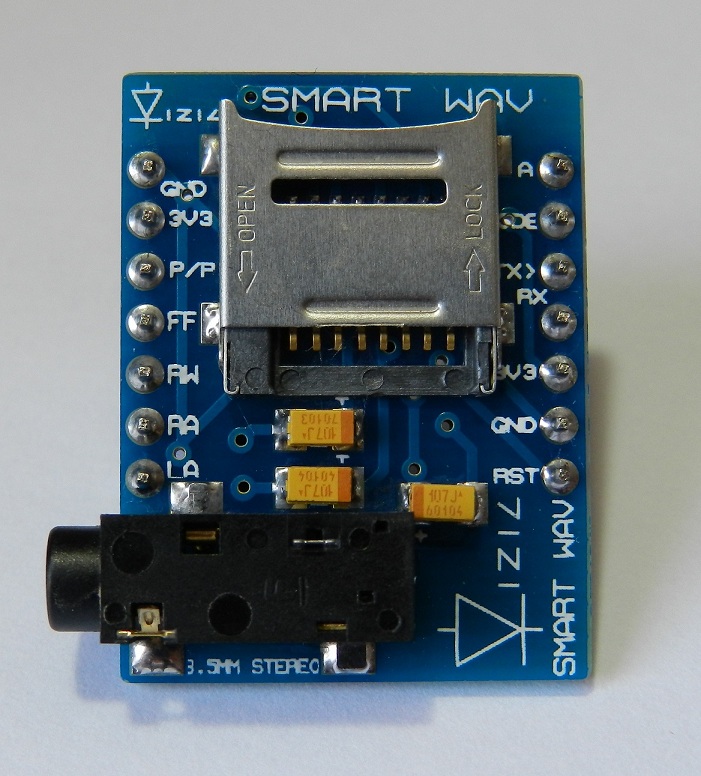
This page presents a library to use a SMARTWAV intelligent embedded audio processor which supports 8/16bit, mono/stereo WAVE (.WAV) files with a sample rate up to 48Khz (CD Quality)from vizic technologies: http://vizictechnologies.com/#/smart-wav/4559021187 (http://www.vizictechnologies.com) The Audio module features are :
- Pre-Amplified Dual channel Stereo Out with 8/16bit, stereo/mono, and up to 48khz sampling rate, CD quality.
- Integrated Digital Volume Control with 255 steps.
- Long file names and folder management support.
- Serial mode or Stand-alone mode.
- On board stereo 3.5mm plug for headphones, or line out.
- Play speed control: 0.5X, 1X, 1.5X and 2X. (Fast Forward).
- Easy 5 pin interface to any host device: VCC, TX, RX, GND, RESET.
- On-board uSD/uSDHC memory card socket with FAT (windows PC), Support up to 32GB for storing thousands of songs/audio WAVE files. No need of special/rare file format.
- Sleep mode.
- Active out pin for led indicator.
- Input pin for mode selection: VCC-serial, GND-stand-alone.
- 9600 standard Baud Rate speed, 8 bits, no parity, 1 stop bit.
- 5V and 3V3 I/O compatible.
- 3V3 power supply, ultra-low current consumption.
- compatible with any microcontroller(8051,pic,AVR,ARM,mbed,FPGAs,PC) and development boards with a UART.
SMARTWAV intelligent embedded Audio processor unit
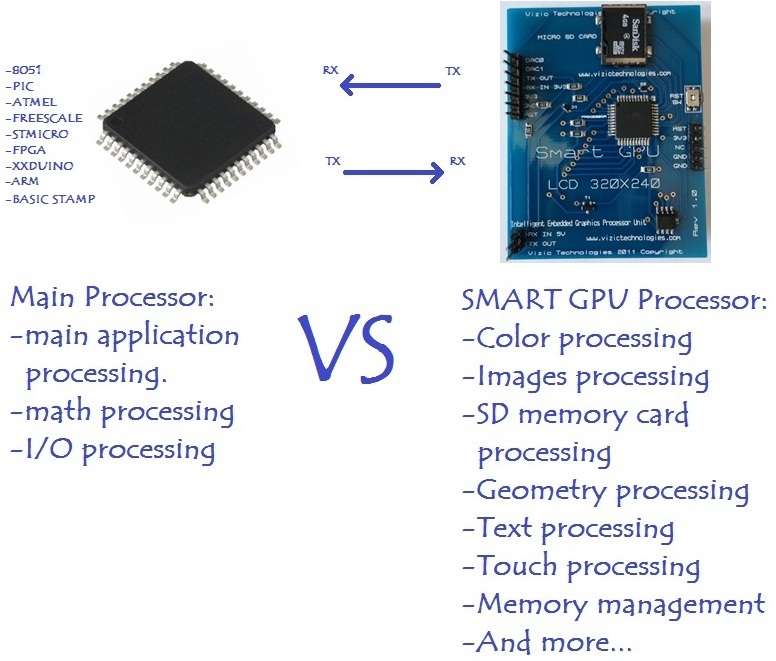
Comparison of processors loads:
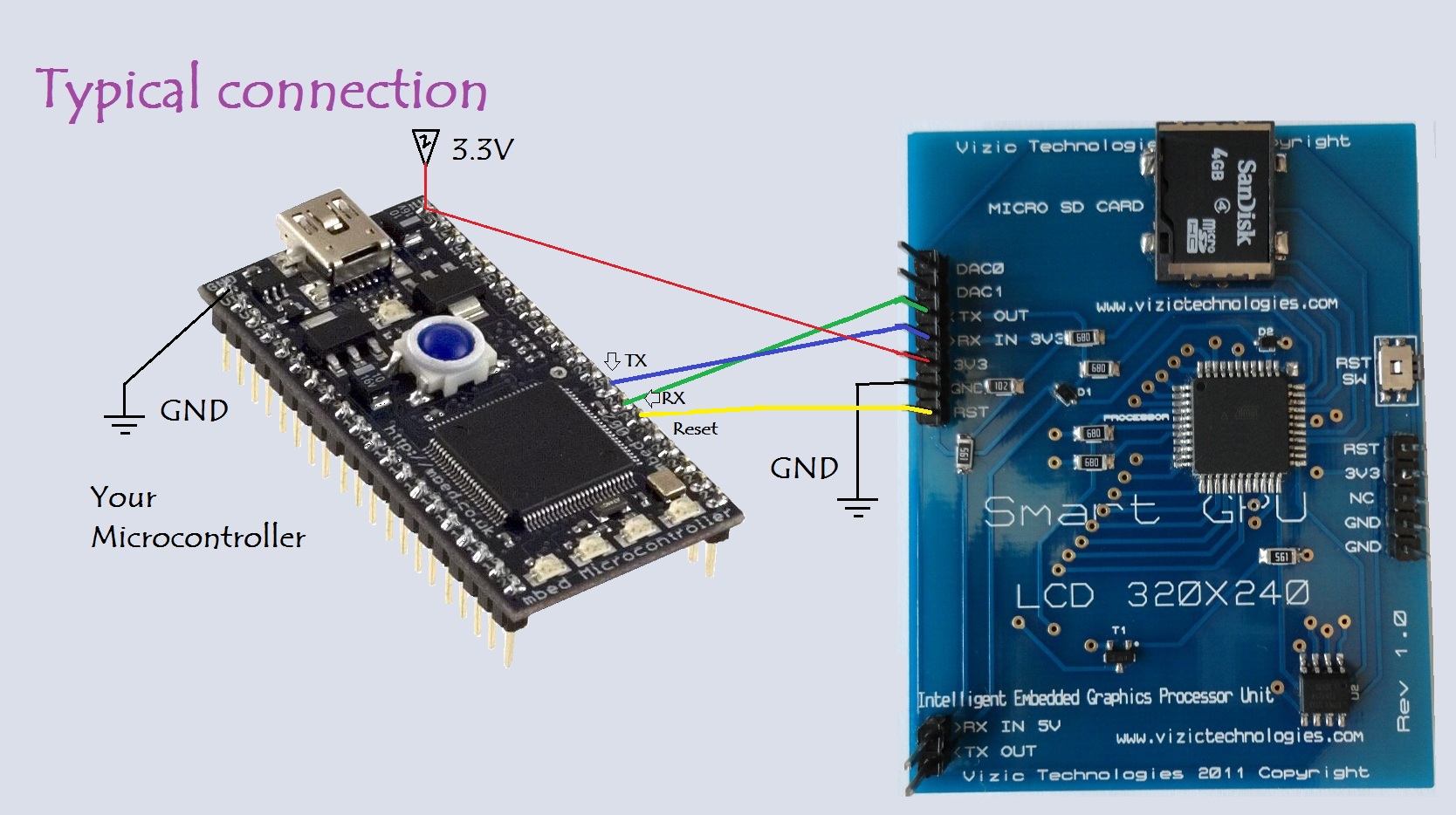
Connecting the SMARTGPU
- You will need to power the screen with 3.3V.
- You can use either the 3.3V I/O pins or the 5V tolerant I/O pins for serial communication.
- If you use an external power source, make sure the mbed ground and external power ground are linked otherwise the serial commands will not be received correctly by the screen.
- Use one of the three Serial pairs of pins (p9, p 10) (p13, p14) or (p27, p28) from the mbed to connect them with the SMARTGPU(up to 3 SMARTGPUs can be connected simultaneously to mbed!).
- Use one pin for reseting the screen.
- The way to use the library is SMARTGPU lcd(p13,p14,p15); (TX,RX,Reset)
SMARTGPU mbed Library
You can import the SMARTGPU mbed Library from here :
Import librarySMARTGPU
SMARTGPU intelligent embedded graphics processor, this library helps to communicate mBed with SMARTGPU dev board 2.4\" touch, excellent serial board that only require TX,RX, and Reset pin to mbed. Powerfull graphics and text processor with universal 4GB micro SD (FAT windows) format compatible. For detailed information visit: http://www.vizictechnologies.com/#/desarrollo/4554296549 www.vizictechnologies.com
Last commit 13 Sep 2011 by  Vizic Technologies
Once it is imported to your program folder, just insert the #include "SMARTGPU.h" in your main.cpp and create the object with SMARTGPU lcd(p13,p14,p15); (TX,RX,Reset)
Example Code
main.cpp
//main.cpp
#include "mbed.h"
#include "SMARTGPU.h"

SMARTGPU lcd(p13,p14,p15);        //(TX,RX,Reset);

int main(){
 lcd.reset();                    //physically reset SMARTGPU
 lcd.start();                    //initialize the SMARTGPU processor
 while(1){                       //loop forever
  lcd.erase();                                         //erase screen
  lcd.putPixel(300,200,CYAN);                          //draw a pixel
  lcd.drawLine(50,50,150,200,WHITE);                   //draw a line
  lcd.drawRectangle(10,10,200,180,RED,UNFILL);         //draw a rectangle
  lcd.drawCircle(160,120,50,GREEN,UNFILL);             //draw a circle
  lcd.drawTriangle(15,15,200,210,180,70,BLUE,UNFILL);  //draw a triangle
  lcd.putLetter(100,100,MAGENTA,FONT3,TRANS,'E');      //write a single letter 'E'
  lcd.imageSD(0,0,"hydra320");                         //Open image "hydra320.bmp" stored on the microSD card
  lcd.string(10,10,300,220,YELLOW,FONT3,TRANS,"String test for SMARTGPU");  //write a string on the screen
  lcd.stringSD(5,50,300,230,MAGENTA,FONT3,TRANS,BEGINNING,ALLCONTENTS,"text1");  //call the text file "text1.txt" previously stored on the micro SD card
 }
}
Videos
Images and microSD contents could be downloaded from here: http://www.vizictechnologies.com/#/software-demos/4554679040
Demos & Source Code
To make it simpler, you can import those demos 100% ready to compile and load:
Beginner:
Import programVariousSG
SMARTGPU general graphics demo (trianges, lines, rectangles, images, circles, text, etc). Be sure to load image and text to microSD first!
Last commit 14 Sep 2011 by Vizic Technologies
Import programSimpleClock
SMARTGPU simple clock application demo
Last commit 14 Sep 2011 by Vizic Technologies
Medium:
Import programPaint
SMARTGPU Simple Paint application with touch!
Last commit 14 Sep 2011 by Vizic Technologies
Import programBouncingBalls
SMARTGPU bouncing balls demo!
Last commit 14 Sep 2011 by Vizic Technologies
Import programNiceClock
SMARTGPU nice clock! Be sure to load the image to the micro SD card first!
Last commit 14 Sep 2011 by Vizic Technologies
Import programPhotoFrame
SMARTGPU photo frame slide show application demo Be sure to load the images to the micro SD card first!
Last commit 14 Sep 2011 by Vizic Technologies
Advanced:
Import programPong
SMARTGPU pong game application demo with touch
Last commit 14 Sep 2011 by Vizic Technologies
Import programPaintPro
SMARTGPU professional paint application! Be sure to load the image to the micro SD card first!
Last commit 14 Sep 2011 by Vizic Technologies
Import programIpod
SMARTGPU Ipod like demo! Be sure to load images to micro SD card first!
Last commit 14 Sep 2011 by Vizic Technologies
Import programWindows
SMARTGPU windows like application demo with touch Be sure to load images to the micro SD card first!
Last commit 14 Sep 2011 by Vizic Technologies
Work in progress
- The library need some extra documentation, but it's 100% functional
- Be sure to post any bug in case of.
Notes
- Images and microSD contents used on some examples could be downloaded from here: http://www.vizictechnologies.com/#/software-demos/4554679040 "SMARTGPUmbedExamples.zip"
- Feel free to use the library and comment!