You are viewing an older revision! See the latest version
Adding Connectivity MTS WiFi Module
Adding Connectivity: Multi-Tech WiFi Module
The Mutli-Tech Systems (MTS) WiFi Module is an 802.11g compliant module that will allow your device to connect to a WiFi router. Using the MTS API, you can configure the WiFi module settings and send and receive WiFi messages to the internet.
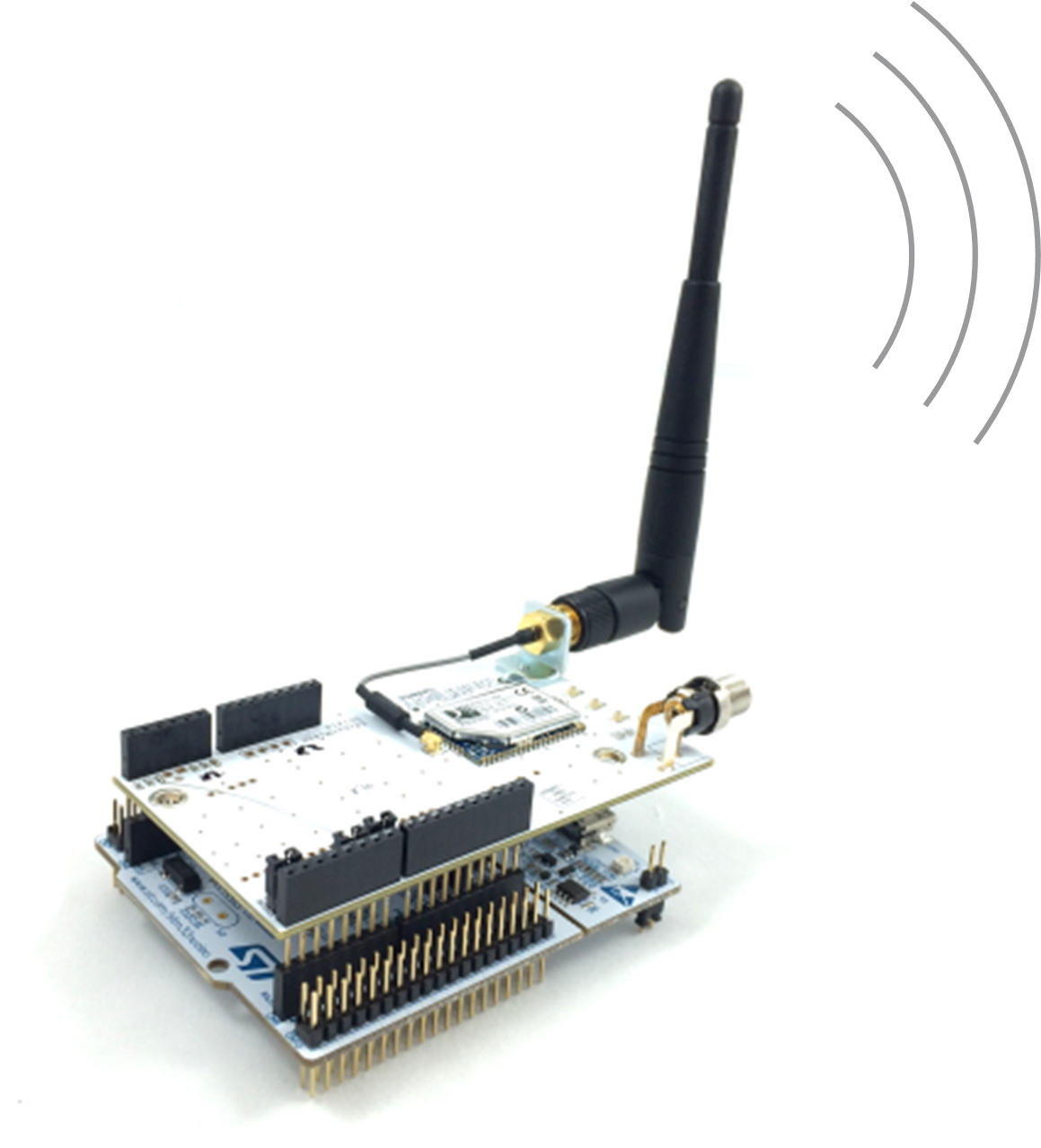
- Connect an MTS WiFi shield board to your Nucleo board
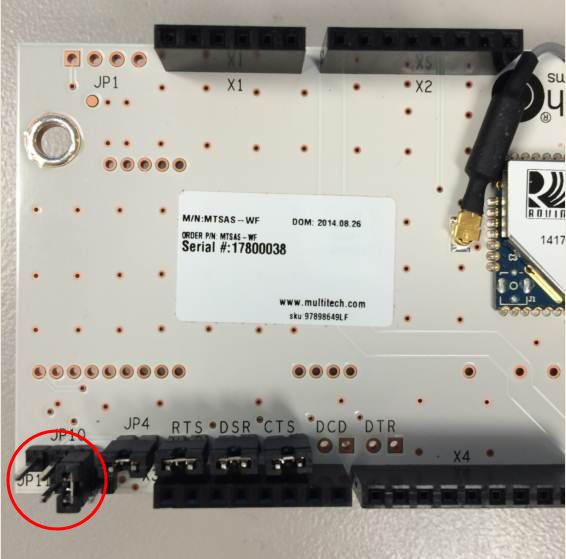
- Check the jumpers on the top-side of the MTS shield board.
- 4 jumpers: JP4, RTS, DSR, CTS should be in place
- 1 jumper: JP10 Pin 3 connected to JP11 Pin 2
- Plug the STM32F411 Nucleo to your PC with a USB cable
The mbed page for the MTS WiConnect Host Library is found here:
Import programMTS_Wifi_Connect_Example
Example program for MTS WiFi Shield. Test that you can connect to a network.
Last commit 11 Jul 2014 by  Multi-Hackers
The API documentation for the library will show you all the library commands available for this module. The MTS Wifi Connect Example will demonstrate how to connect the Nucleo board + MTS WiFi shield board to a local WiFi hotspot.
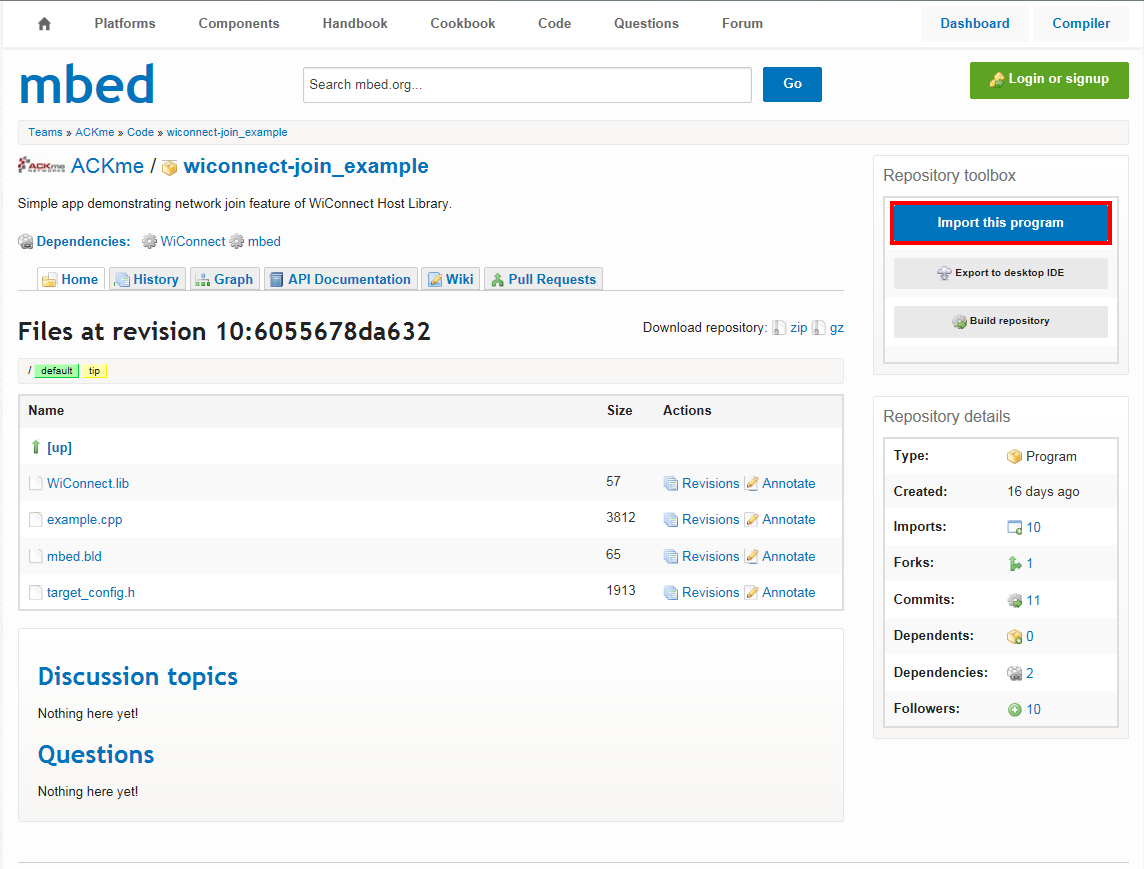
- Go to MTS Wifi Connect Example and import this example program into your mbed compiler by clicking the “Import this program” button
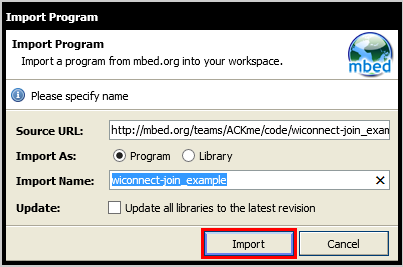
- Click the “Import” button on the pop up window shown below
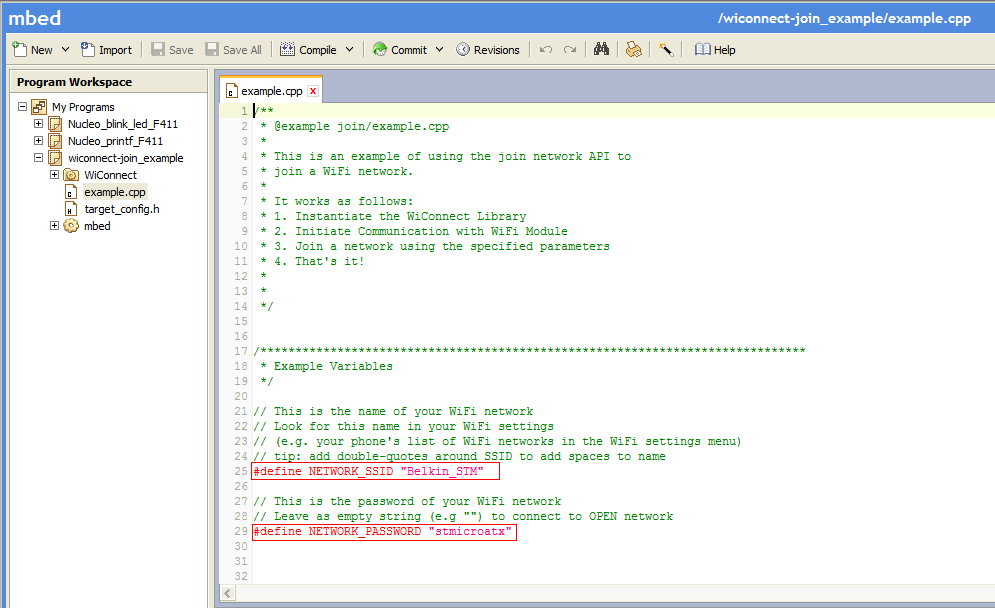
- Open the "example.cpp file"
- Enter the SSID name and password of your local WiFi hotspot in the
#define NETWORK_SSIDand#define NEWTORK_PASSWORD
Information
This module is 802.11g compliant so be sure your WiFi router is setup for 802.11g.
- Open and edit “target_config.h” file and change the
#ifdef TARGET_NUCLEO_F401REto#ifdef TARGET_NUCLEO_F411REto target the Nucleo_F411RE board

- Compile and load the image onto the F411 Nucleo drive
- Open a terminal window to display the status of your WiFi connection. For this example, set the terminal BAUD rate to 9600
Note
Addition information on how to set up a terminal window for console output can be found here: Creating Console Output
Once the BAUD rate is set, you may need to unplug then plug your Nucleo board to restart your terminal program with the correct BAUD rate settings. You can also reset your program by pushing the Black reset button on the Nucleo board.
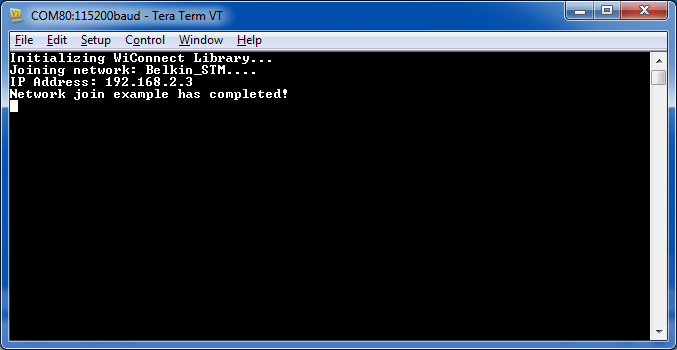
You will receive a message on your terminal console on the status of the connection. If you receive the message Network join example has completed! your device is wirelessly connected.