You are viewing an older revision! See the latest version
NAMote 72 wiki
Overview
This Wiki page describes how to setup a NAMote72 platform and implementing the available test code. The NAMote72 Platform module is intended to enable a quick and easy range test of the Semtech SX1272 LoRa device as well as test bench performance and communication tests.
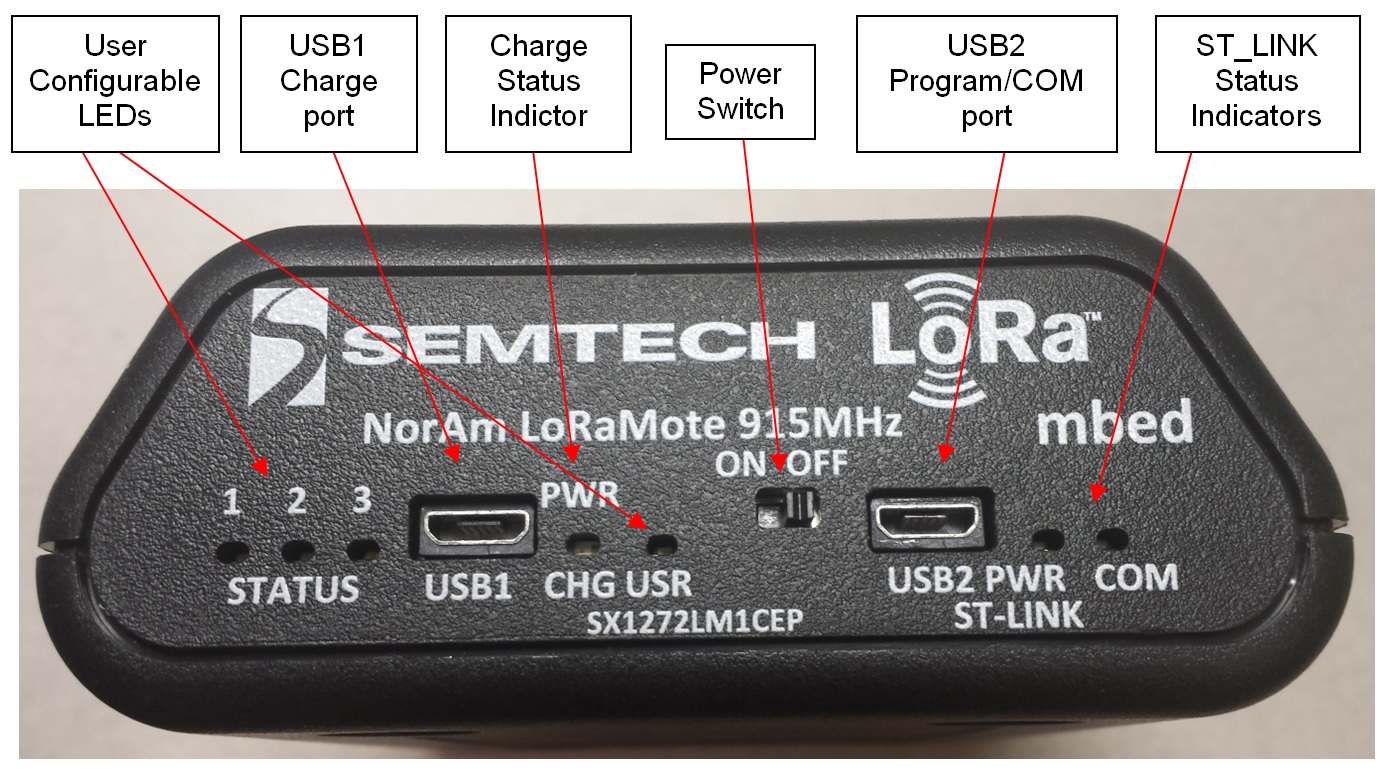
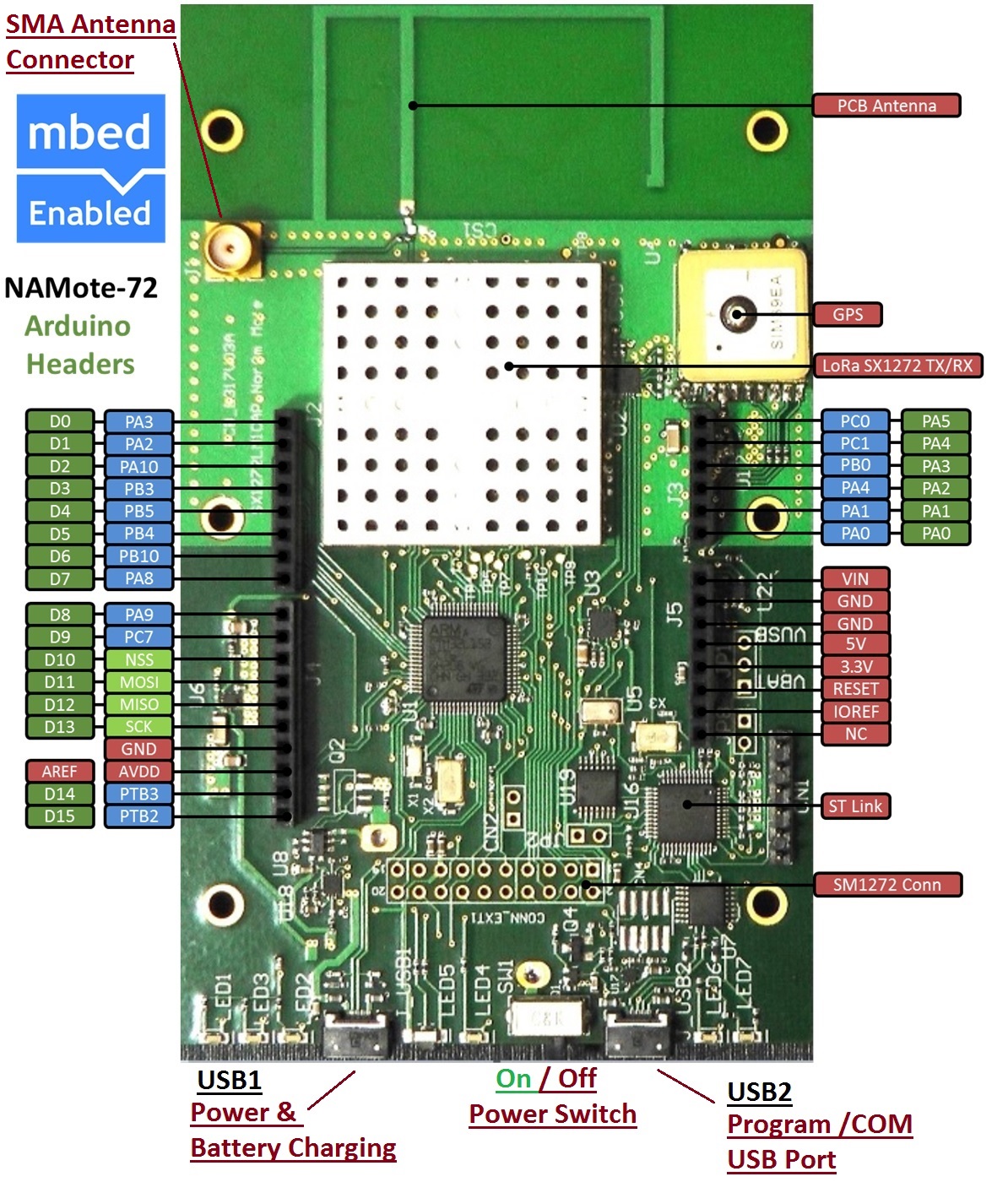
The front panel and pinout diagrams below shows the commonly used interfaces and their locations.
USB1 Charge Port - The USB1 Charger port connects to an external USB wall charger or host computer USB port. Under low battery conditions, the charger can supply up to 700mA to recharge the battery while also powering the module. This charge status indicator LED will illuminate orange when the battery is charging and green when fully charged.
User Configurable LEDs - There are four LEDs provided, which under user control can be used to provide module status. LED1 is red, LED2 is green, LED 3 is yellow and LED USR is red. The MCU ports for these LEDs are shown in the Appendix at the end of this wiki page.
Power Switch - This switches on the battery to power the module. When this switch is in the OFF position, and a charger is connected to USB1, all charge current is directed to the battery. When a charger is connected and the switch is on, a portion of the charge current charges the battery and a portion helps power the module.
USB2 Program/COM port - This port serves two functions. When connected to the Host PC through the USB cable, a mbed mass storage device will appear on the Host PC, permitting the user to program the module. In addition, a virtual com port will also appear, enabling serial communication with user firmware. The ST-Link status indicators show programming status. Green indicates successful download.
Connecting the Platform
1. Connect the micro USB connector to the NAMote72 USB2 Input (Images above) and the other end to a PC
Note: The NAMote72 will start to run the application that is curently programmed
2. Ensure Connecton to PC and NAMote72 Virtual Drive Listing
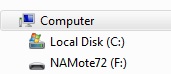
3. Open NAMote72 virtual drive and select MBED.HTM to go to NAMote72 mbed platform page.
Programming the Platfrom
1. Import the appropriate Example (Test Code Application A - na_mote1) into the mbed Compiler
See Test Code Application Examples section below for how to use the na_mote1 example.
[Repository '/teams/Semtech/code/na_mote1/' not found]
2. Select NAMote72 as the Platform and Compile Application
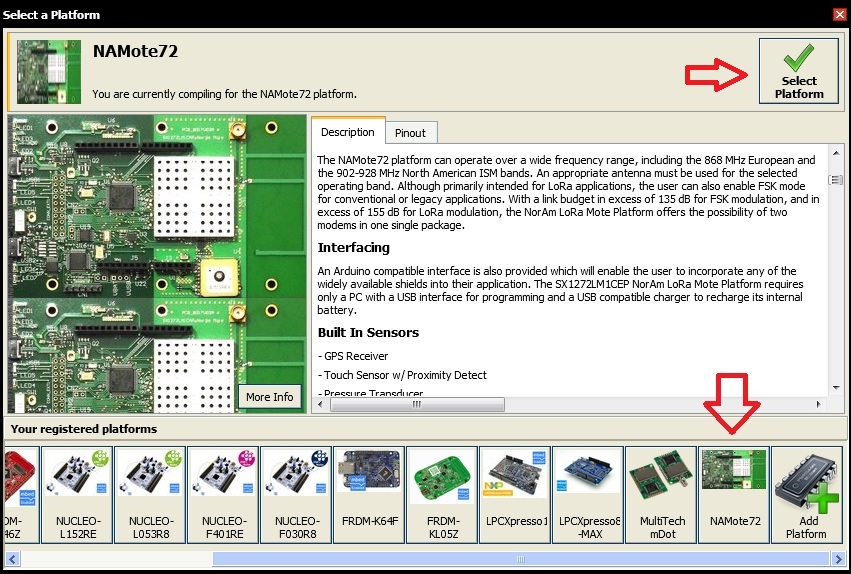
3. Select where to store the .bin programming file (in My Downloads by Default)
4. Programming the Platform
Save the program binary file (.bin) to your mbed Virtual Disk Labeled NAMote72, just like you would with a normal USB disk. The Status LED will flash as the PC writes the file to the Microcontroller disk. The .bin file is now programmed into the platform.
5. The microcontroller will reset after programming and the last programmed application will begin to run.
Note: Test Code Applications require the use of a Serial Terminal Monitor (HyperTerm, Putty, TeraTerm, etc.)
6. Determing the Virtual COM port that the NAMote72 platform is using
Verify with Windows Device Manager and Ports available. Note the Port number.
7. Setup Serial Terminal Monitor (Putty for example)
Test Code Applications
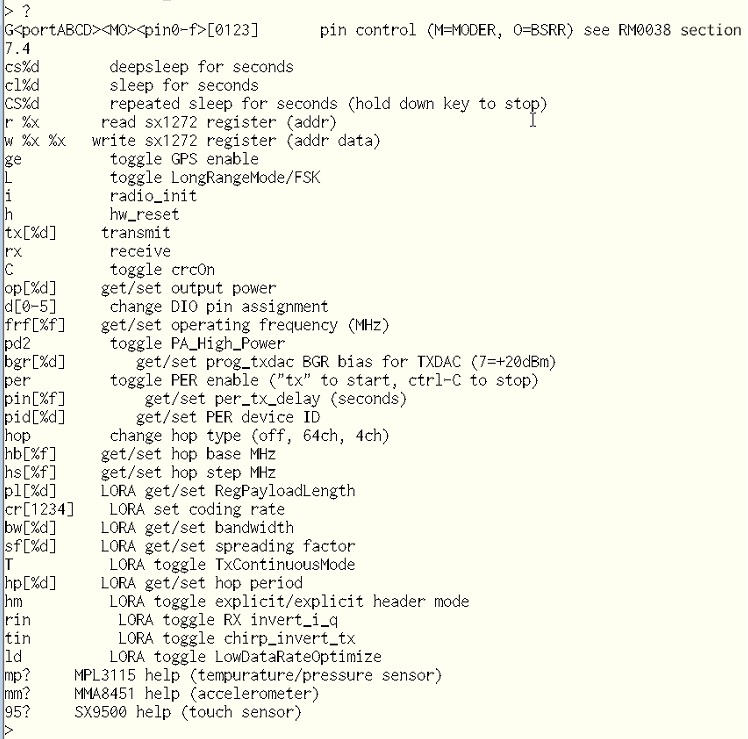
Test Code Application A - Serial Terminal Commands for NAMote72 HW
[Repository '/teams/Semtech/code/na_mote1/' not found]
Test Code Application B - SCPI command Parcer
This (scpi) program below implements a SCPI command parser. When connected via the debug virtual comm port, commands can be sent to the radio and peripherals to perform specific tasks or to set specific parameters. The serial port defaults to 9600bps N-8-1.
Test Code Application C - LMIC transmit example for NAmote-72 with GPS
Import programlmic_NAmote_GPS
LMIC transmit example for NAmote-72 with GPS
Last commit 02 Mar 2016 by  Semtech
Test Code Application Examples
Basic user Test Code application A (na_mote1) - Serial Terminal Monitor Commands for NAMote72 HW
Where to Next
Follow the guide to creating your own programs using the online compiler
Schematics
NAMote72 Platform Schematic Sheets
Documents
Data Sheets and other relevant NAMote72 Technical Information
SX1272 Datasheet
LoRa Modem Designer's Guide
LoRa Low Energy Design Guide
LoRa Calculator: fast evaluation of link budget, time on air and energy consumption
Firmware
NAMote72 Firmware Update Files
Firmware update procedure: Run the batch (.bat) file contained withing the .zip file. Note: In updating the NAMote72’s with this batch file the first time it is run the ST Link driver will be updated. Then the batch file will need to be run again to update the NAMote72’s volume name and MBED.HTM link to the NAMote72’s platform page.
Appendix
MCU Port Assignments
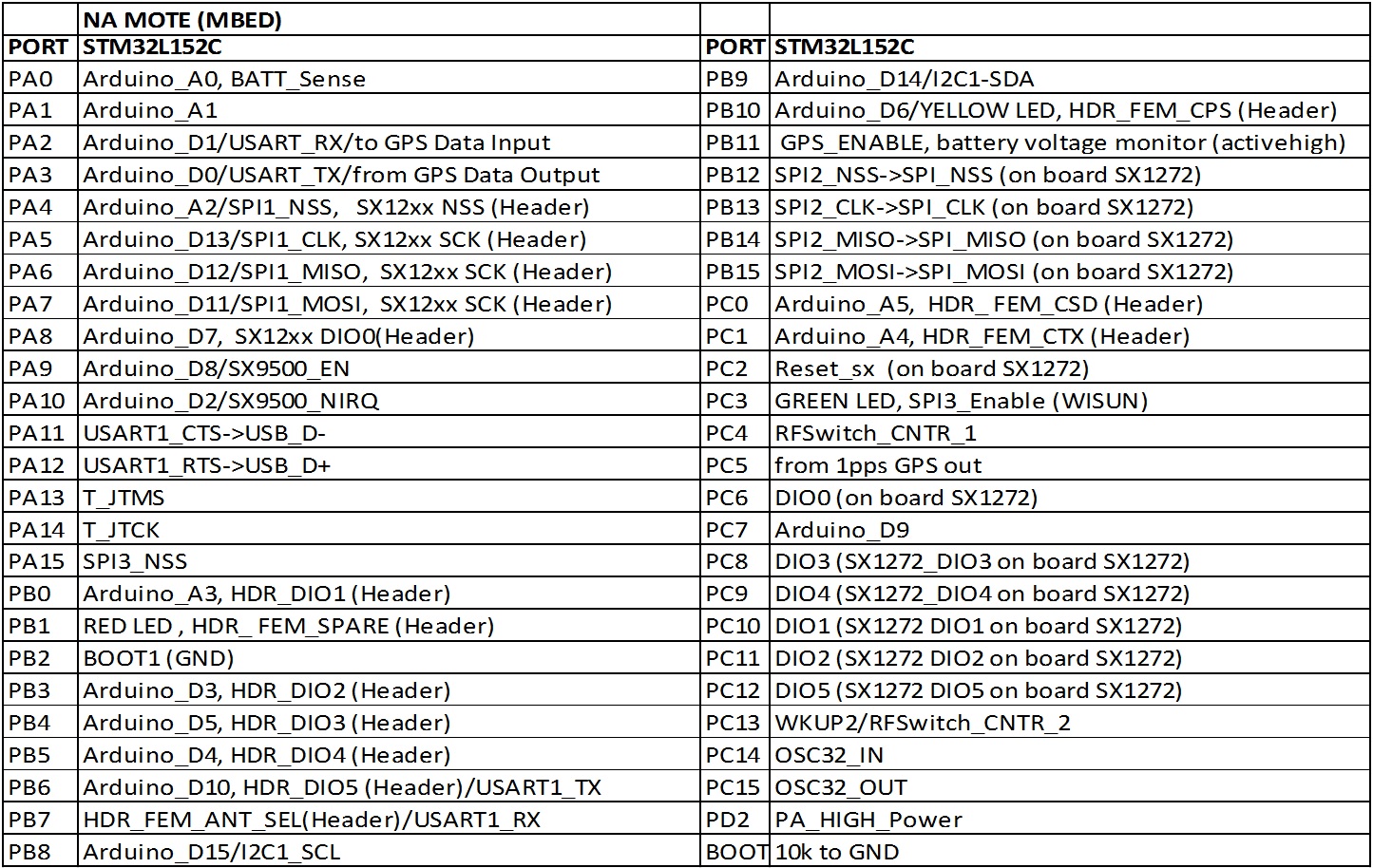
LED Settings

GPS / Battery Voltage Monitor Settings

TR Switch / PA Power Settings
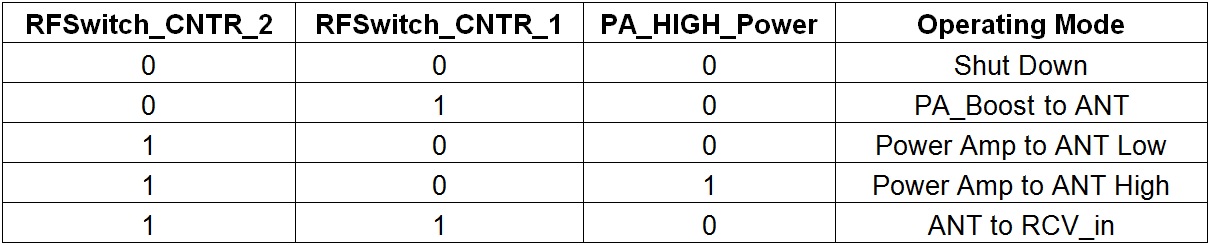
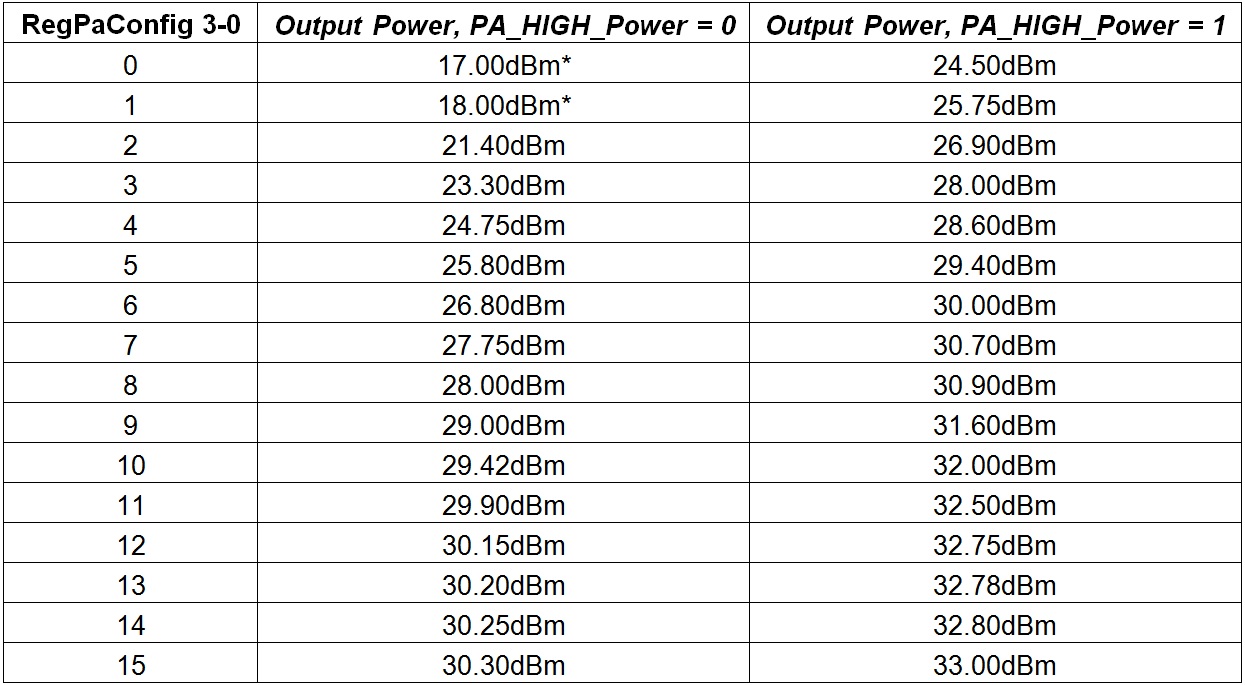
Output Power Level Settings +/-1dBm Settings
*Use PA_Boost for power 18dBm or lower.