You are viewing an older revision! See the latest version
Collaboration/Getting started
« CollaborationBeta mode only!
This page describes features currently only available in a restricted beta trial.
For more information, see Collaboration Rollout.
First some terminology:
- Remote repository = A library or program which is published on mbed.org.
- Local repository = A program or a library which is in your private workspace. A Local repository may be 'linked' to a Remote repository.
- Pull = Copy changes from another repository to your own
- Push = Copy changes to another repository from your own
- Publish = Create a public repository
Getting started
The most basic (and the most popular) usage of the collaboration system is to support the traditional workflow where one author works on a project, and other people import the project.
When an author releases new updates to a project, users are notified of the updates and can upgrade to the latest version
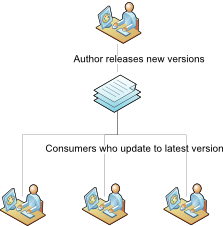
This works in a very similar way to the existing mbed publishing system. The author publishes a program or library and others can import it.
Users who have imported the program or library can easily check for new versions of the code via the Revisions panel.
About importing a repository
When you import a repository, you are making a clone of a public repository and putting it in your private workspace.
A imported repository can either be a whole program or a library for a program.
A repository can contain dependencies on other repositories. For example, a library may need another library in order to work. All dependencies will be imported for you automatically when you import a repository.
When you import a repository, the clone in your workspace will be "linked" to the public repository by URL.
To import a repository, simply click the Import link on the repository on the mbed website, or use the Import button within the mbed Compiler.
Getting updates
When the author of a repository releases new versions of their work, you will see something like the following in the Revisions Pane.

This indicates there are changes available. You can also view the details of each available change.
To get the latest version of the code, simply click the 'Pull All' button.
Being an author: Publishing your first repository
When you are working on code inside your private workspace, you can commit your work using the Commit button.

This adds a commit to your private repository and is a good way of managing your code and keeping a record of changes made. This remains completely private unless you Publish your repository.
If you want to share your work, you can click Publish from the right-click menu on your workspace program.

You will be prompted to commit your work if you have uncommitted changes.
Then, if this is the first time you have published this program or library, you will see a dialog like this one:

Complete a description of what you are publishing, and hit publish.
That will copy your private repository to the mbed public website, where other users can import it.
The public copy of your repository is the home of your project on mbed. This is the place for:
- Documentation about your project
- Guides on how to use it
- Discussion by users of your project
- More in the future!
For more details, see Writing a library.