Important changes to repositories hosted on mbed.com
Mbed hosted mercurial repositories are deprecated and are due to be permanently deleted in July 2026.
To keep a copy of this software download the repository Zip archive or clone locally using Mercurial.
It is also possible to export all your personal repositories from the account settings page.
You are viewing an older revision! See the latest version
Homepage
TCP/IP Networking Over the MBED Virtual Com Port is Possible
Blinks LED1 when the host PC attempts a Dial-up Networking (PPP) Connection to the mbed USB serial port.
This program shows how mbed boards with a USB serial port interface to a standard Dial-up Networking Adapter in Windows 7 and Windows 8.
The program waits for the string CLIENTCLIENT from the PC, on the USB virtual serial port.
Upon receiving the string, it sends a response: CLIENTSERVER.
The response string CLIENTSERVER is interpreted by the Windows unimodem driver as a CONNECT response.
Windows assumes the connection is made and starts sending PPP link packets - we have the beginning of a TCP connection!
This program detects the PPP frames and toggles LED1 every time a frame is found.
PPP should probably be handled by the awesome LWIP library.
Trying It Yourself
Plug your MBED board into your host PC USB port. You need a board with a virtual COM port. I used the ST-Micro Nucleo-L476RG. Compile the code for your board and download it.
You can manually test the code by opening a terminal program such as Tera Term, and setting the relevant USB Virtual Com port to 115200 baud. Nothing will happen until you type CLIENTCLIENT (there is no echo) when you will see "CLIENTSERVER" sent from the board. LED1 should toggle for every two 0x7E characters you send. Don't forget to close the port when your'e done testing, or Windows Dial-up Networking will report that the com port is in use by another program.
Creating a Dial-up Networking Adapter on Windows
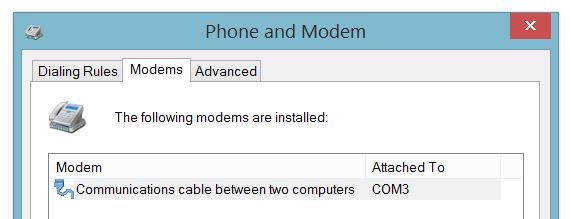
To test this with your Windows 7 or 8 PC, you have to create a new modem. The process should go roughly like this https://technet.microsoft.com/en-us/library/cc726048(v=ws.10).aspx, and you have to choose Communications cable between two computers under Standard Modem Types.
When asked which serial port to use, select your MBED board's USB virtual COM port. Finally, go to Modem properties and set the baud rate of the modem serial port to 115200 baud.
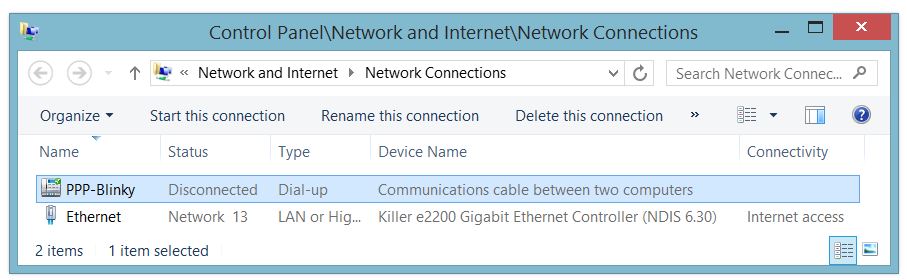
In windows networking, create a new Dial-up networking adapter by choosing Setting up a new network connection and then choosing Connect to the Internet. You will be told You are already connected to the internet, but click Set up a new connection anyway and choose the new modem that you have created. Even though it's a direct connect link, you have to enter a phone number to dial, so just enter 1.
With the the code running on your MBED board, you should see LED1 turn on as soon as you click Connect on your PC, signaling that the code detected the "CLIENTCLIENT" string from the PC.
After the PC receives the correct response CLIENTSERVER, it will try to establish an "internet" (PPP) connection with your MBED board, and you will see Verifying User Name and Password in the status box. You have just proven that a USB-PPP networking connection is possible!
Dealing with the Windows 7/8/10? Error 777 Bug
There is a really annoying bug in Windows 7/8/10 Dial-Up networking. It's likely that you will run into it.
If you see Error 777 instead of "Verifying User Name and Password" and LED1 never turns on, you have to manually edit a file named rasphone.pbk, find a string Type=1 and change it to Type=3.
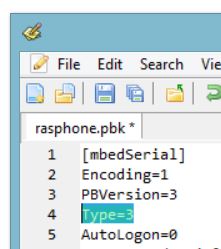
Note that this string will be modified back to Type=1 every time Windows saves phone book information (e.g. the phone number) so you have to remain vigilant for Error 777 and go back in to repeat the fix!
It's a well known bug and you can read all about it, including finding the location of rasphone.pbk, here: http://stackoverflow.com/questions/7953376/ppp-connection-through-serial-cable-works-on-windowsxp-but-doesnt-work-on-windo