Important changes to repositories hosted on mbed.com
Mbed hosted mercurial repositories are deprecated and are due to be permanently deleted in July 2026.
To keep a copy of this software download the repository Zip archive or clone locally using Mercurial.
It is also possible to export all your personal repositories from the account settings page.
You are viewing an older revision! See the latest version
Configuring Windows Dial Up Networking
Step-by-step guide to configuring Windows for PPP-Blinky
This guide was made using Windows 8.1.
If you use a different version of Windows, your steps may look slightly different.
Use Device Manager to configure your mbed serial port is
1. Ensure your mbed board has the latest firmware installed - check with your board vendor.
2. Ensure your PC has the latest USB driver installed for your mbed board - check with your board vendor.
3. Use Device Manager and check under Ports to find your mbed board's USB virtual serial port.
In the example below, the mbed LPC1768 board registered as "mbed Serial Port (COM3)"
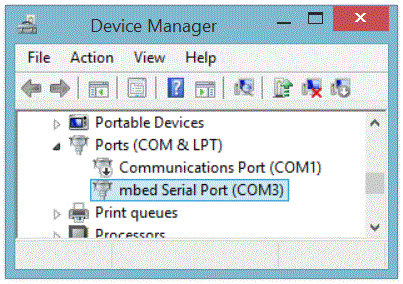
4. Double-click on the mbed serial port to open its properties window, and set the baud rate and parameters as follows:

5. Under Control Panel, find the Phone and Modem entry, and click on it.
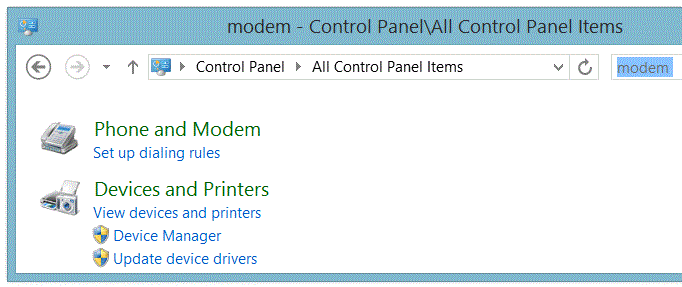
6. This will open the Phone and Modem dialog. Go to the Modems tab and click on Add
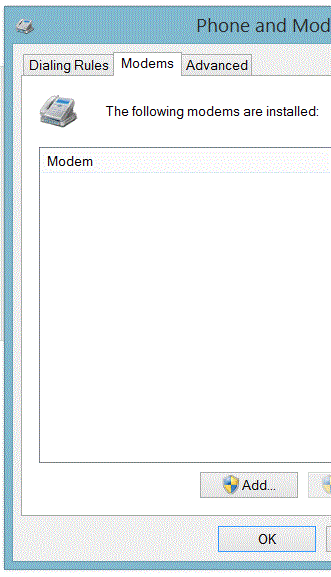
7. In the Add Hardware Wizard, select Don't detect my modem. I will select it from a list , then click Next (see below)
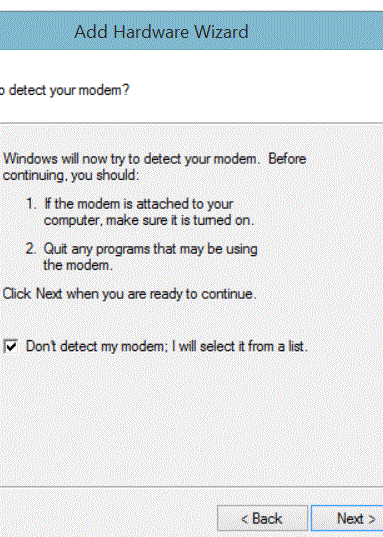
8. In the Install New Modem dialog, choose Communication cable between two computers under Standard Modem Types, then click Next.
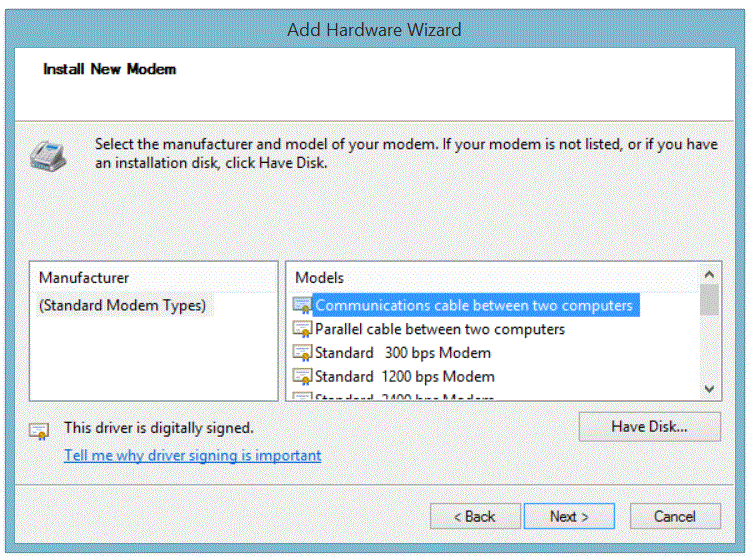
9. In the Install New Modem dialog, click on the COM port of your mbed board. (COM3 in my example), then click Next.
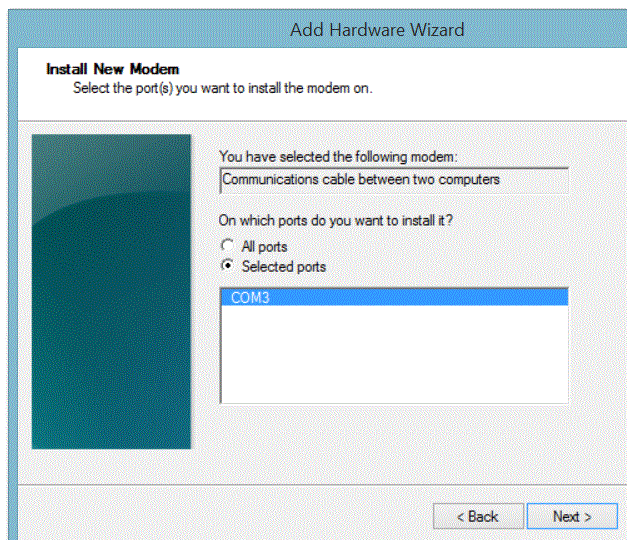
10. After a while you should see this:
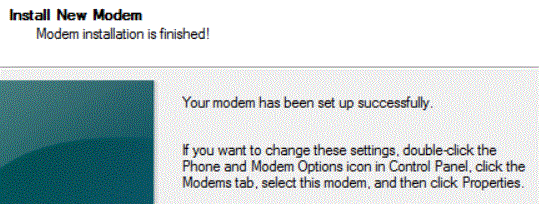
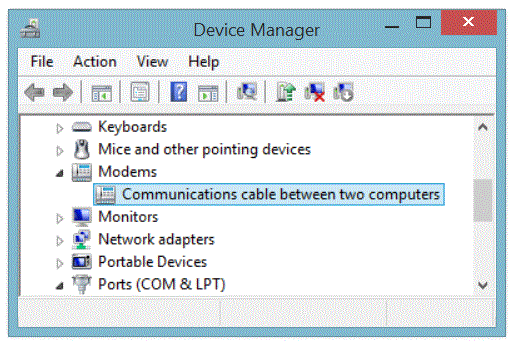
11. In Device Manager you will now have a new category: Modems. Open the category and double-click on Communications cable between two computers to configure your new "modem". Be patient, this window may take a long time to open
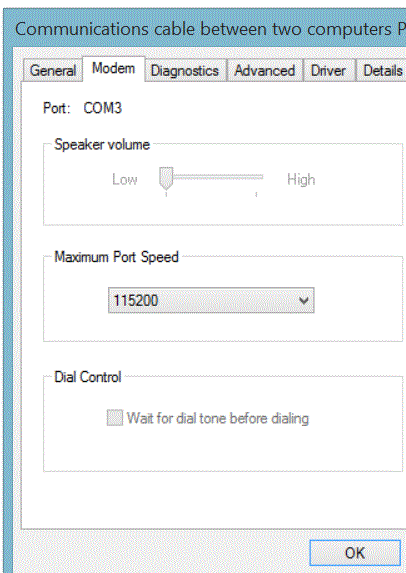
12. Under the Modem tab, set the speed to 115200 bits per second:
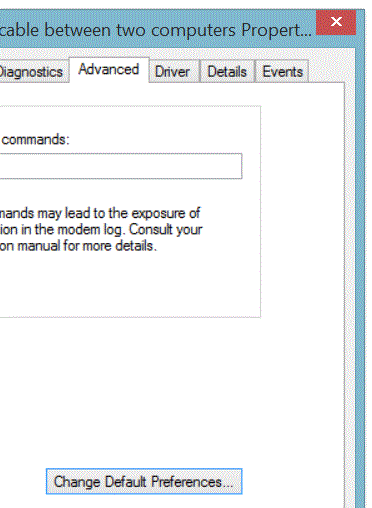
13. Under the Advanced tab, choose Change Default Preferences:
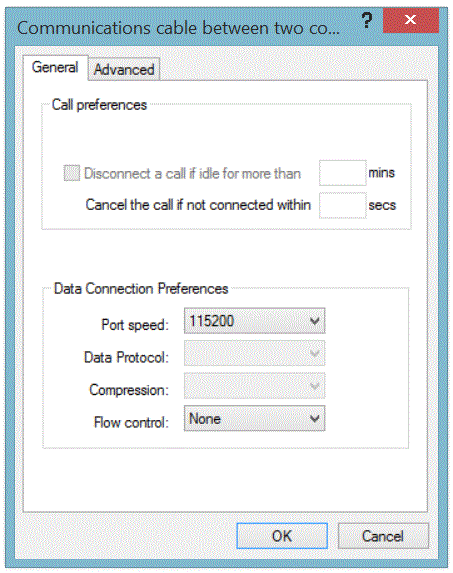
14. In the new dialog, change Flow control to None and click OK: